Getting started
WebUVs lays out a model's UVs - the flat map that wraps a texture around it - right in your browser. Nothing you open leaves your computer.
Open a model
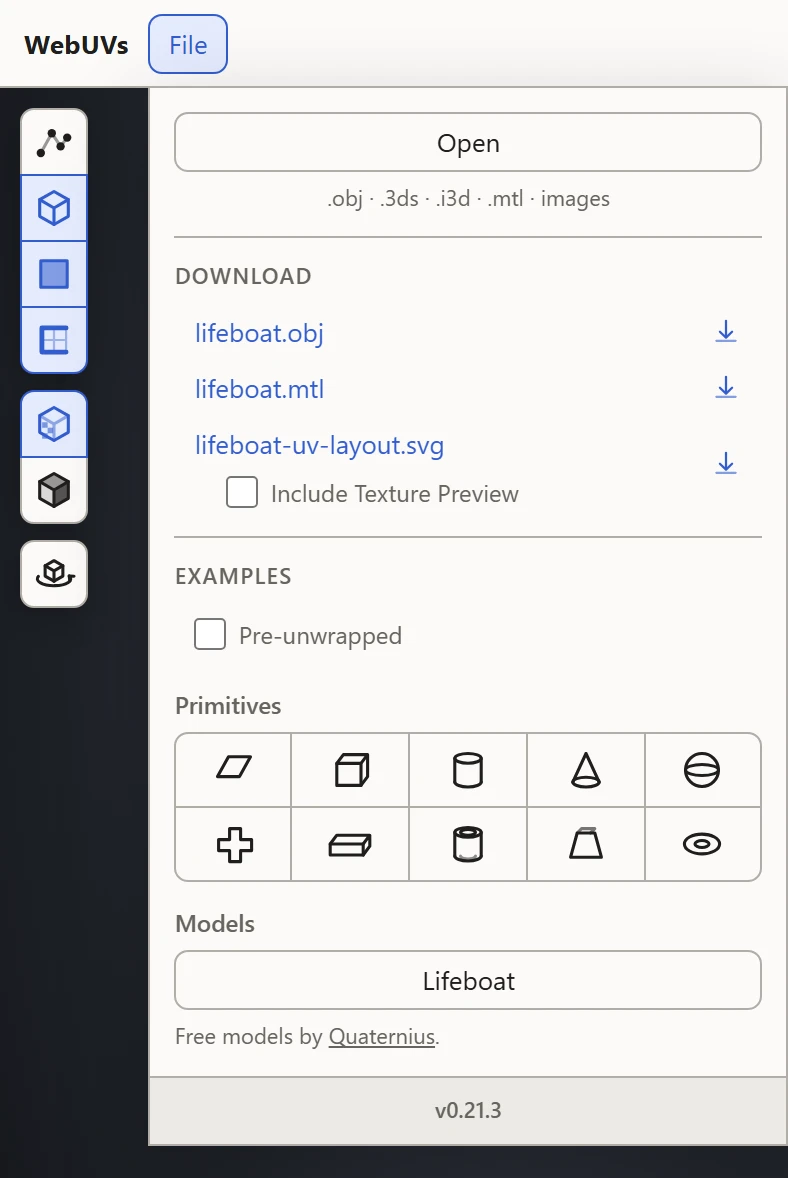
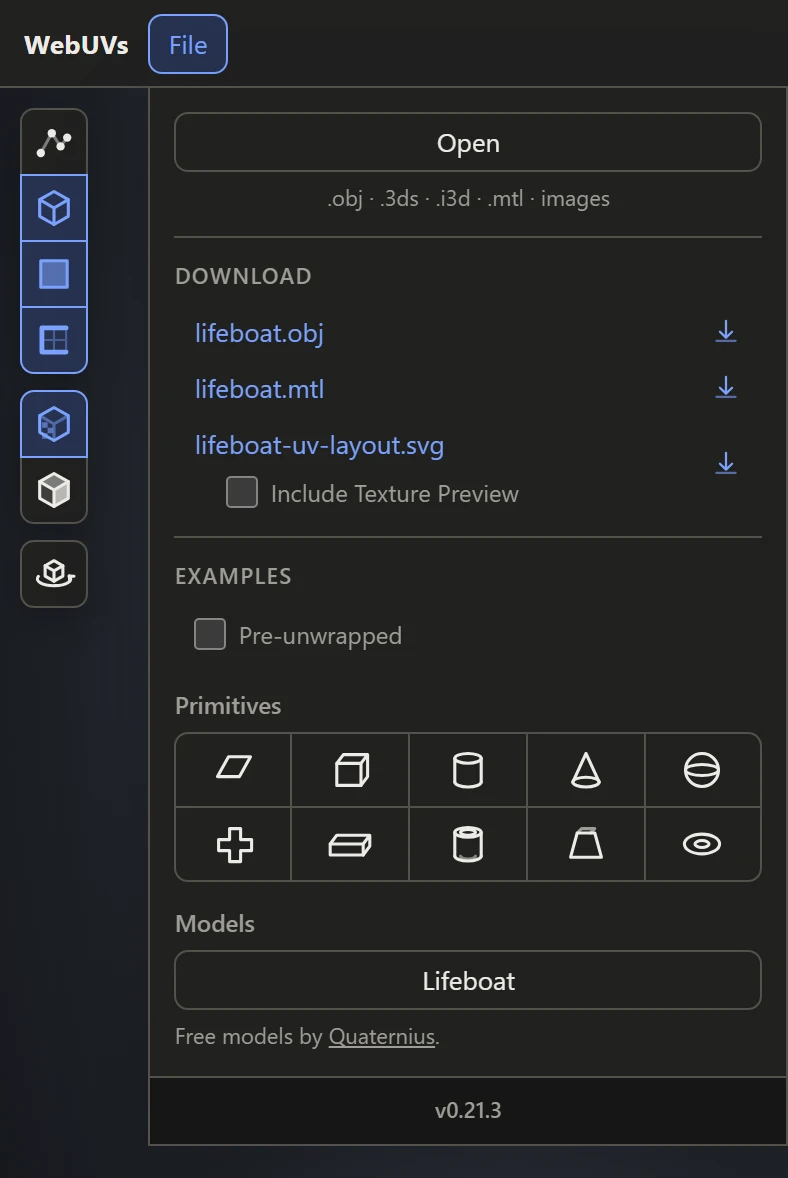
Open File and pick Open, or drop files onto the views: an OBJ with its MTL, a .3ds or an .i3d, and any images to use as textures. No model at hand? The File menu's shapes and example models get you going.
Find your way around
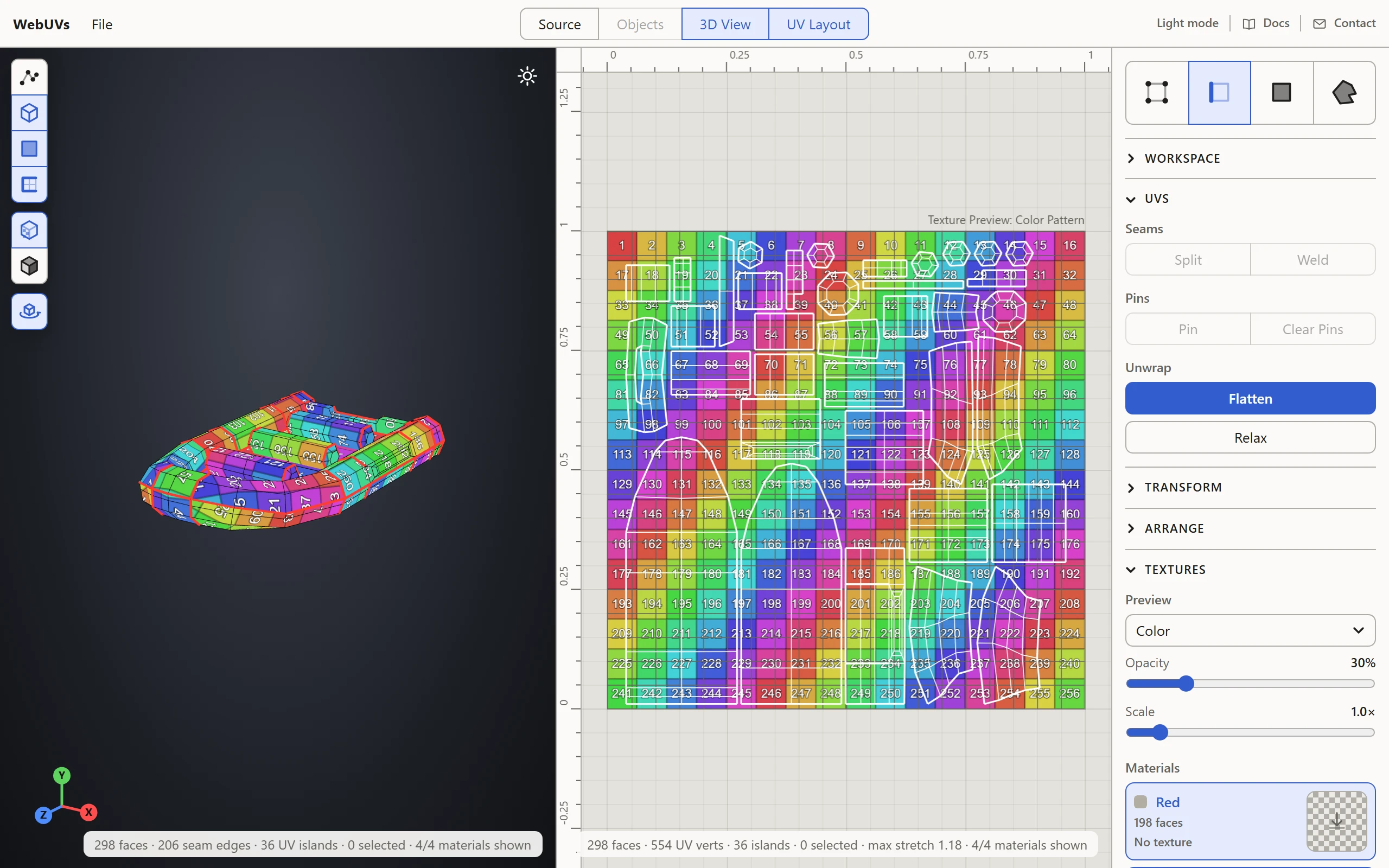
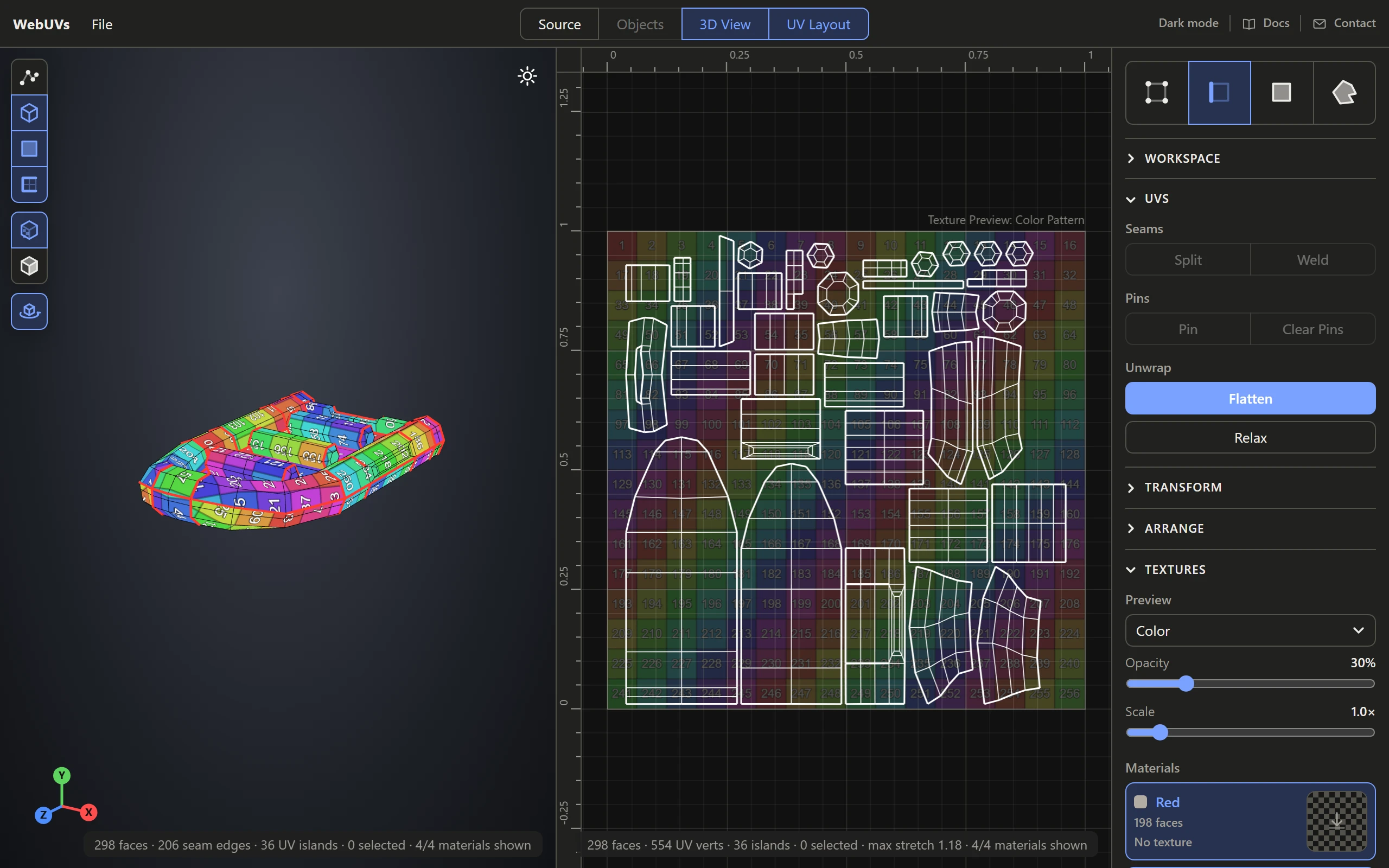
The buttons at the top show or hide the views - Source, Objects, 3D View and UV Layout - any mix at once. The tools are in the sidebar on the right.
Unwrap
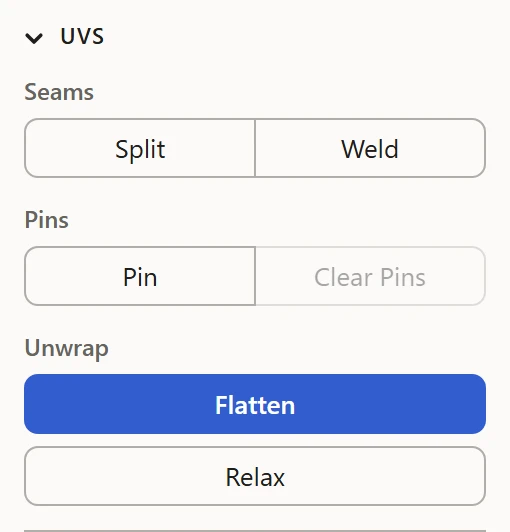
Select edges and Split them to mark seams, where the model gets cut. Flatten then lays each piece out flat. With Relax on, hold an island in the UV Layout to even out its stretch, and Pack, under Arrange, fits the pieces into the square. A model with no UVs yet gets a Generate UVs button in the UV Layout that does all of it at once.
Save your work
Under Download in the File menu: the model as an OBJ with its MTL, or back into the .3ds or .i3d it came from, and the layout as an SVG to paint a texture over. Your work is also kept in this browser, so a reload picks up where you left off.