Stretch and Texel Density
Two previews, under Distortion in the Preview list, color each face by how its UVs compare with its shape on the model.
Stretch
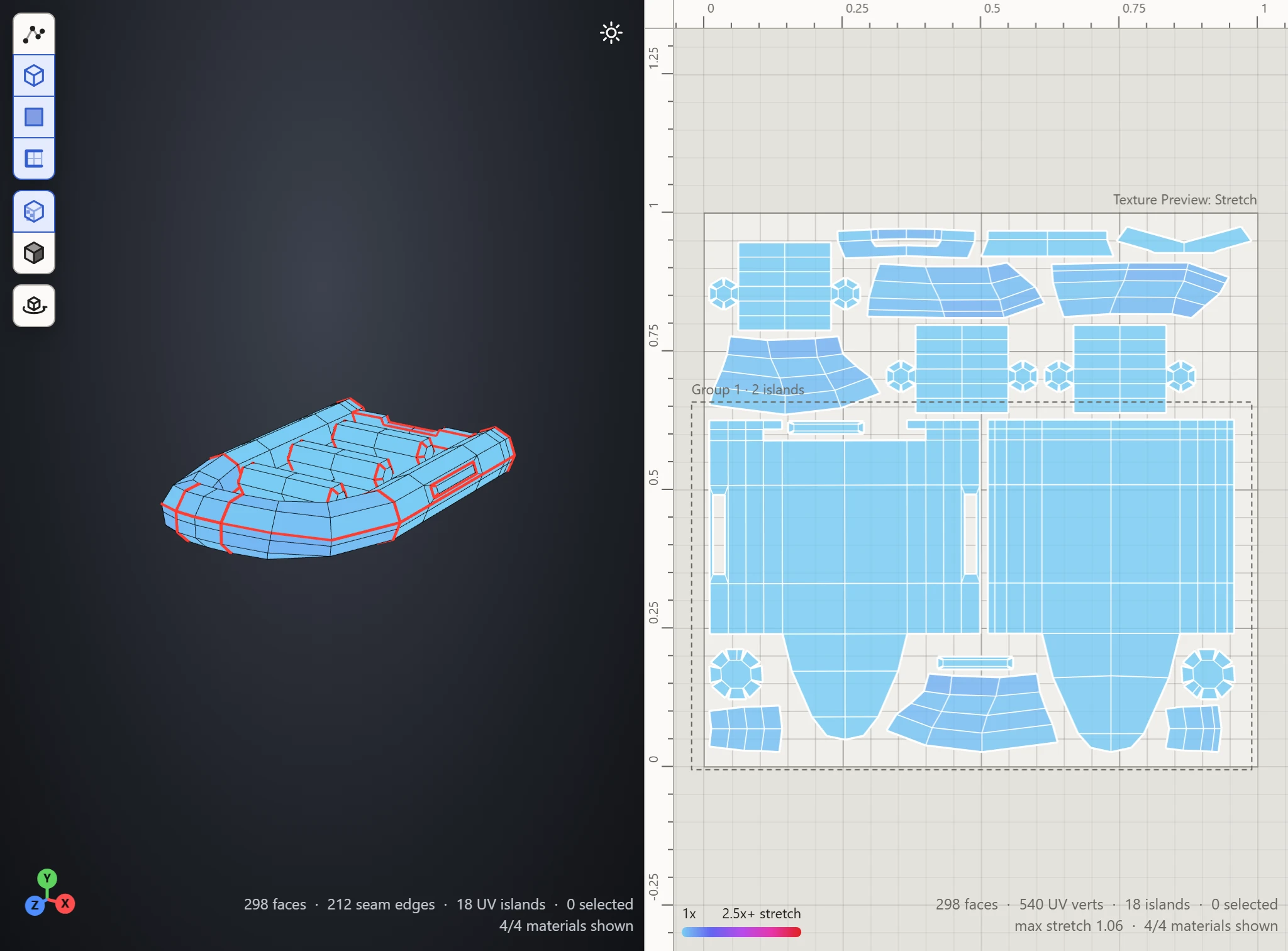
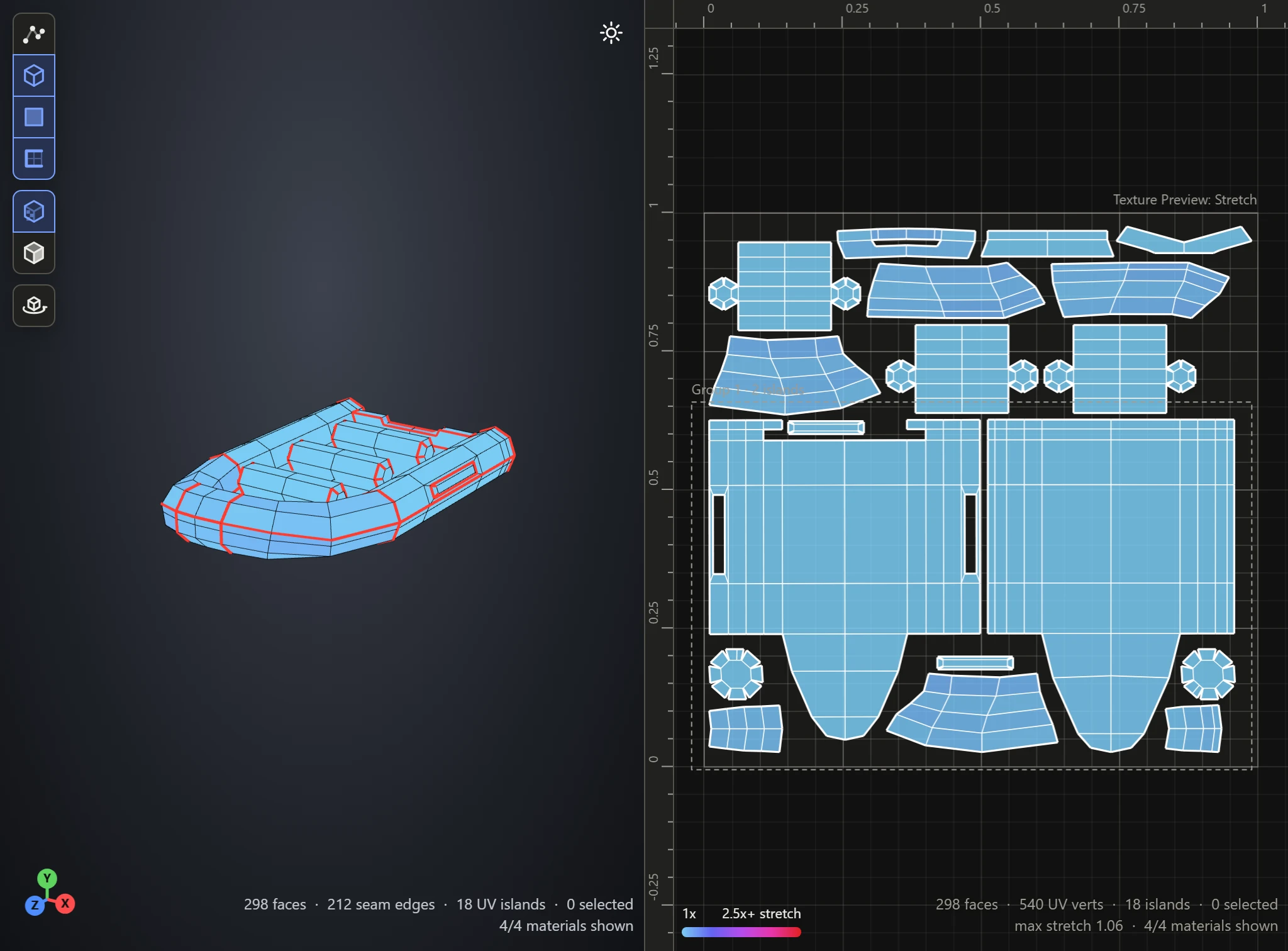
How far a face's UVs are pulled out of its true shape. Blue is true to shape, so a texture's squares stay square on it; through purple to red, it's stretched, the texture pulled across it. At a Scale of 1, red means 2.5 times or more.
The key at the bottom left of the UV Layout shows the colors, and the counts at its bottom right say the most stretch on any face. Raise Scale to make smaller stretches show. To fix stretch, add a seam where a piece can't lie flat, or Relax an island pulled out of shape by hand. See Fix stretched UVs.
Texel Density
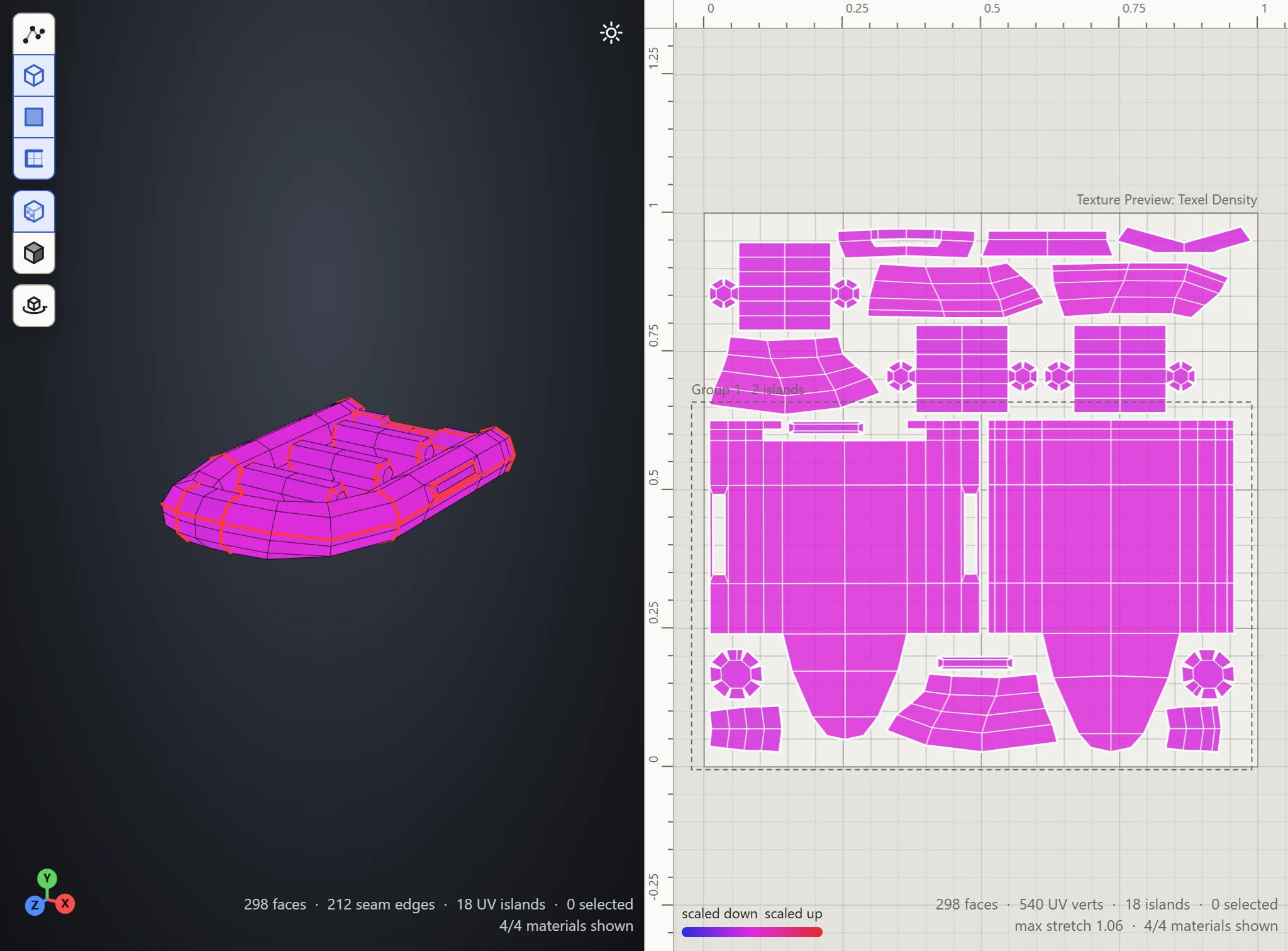
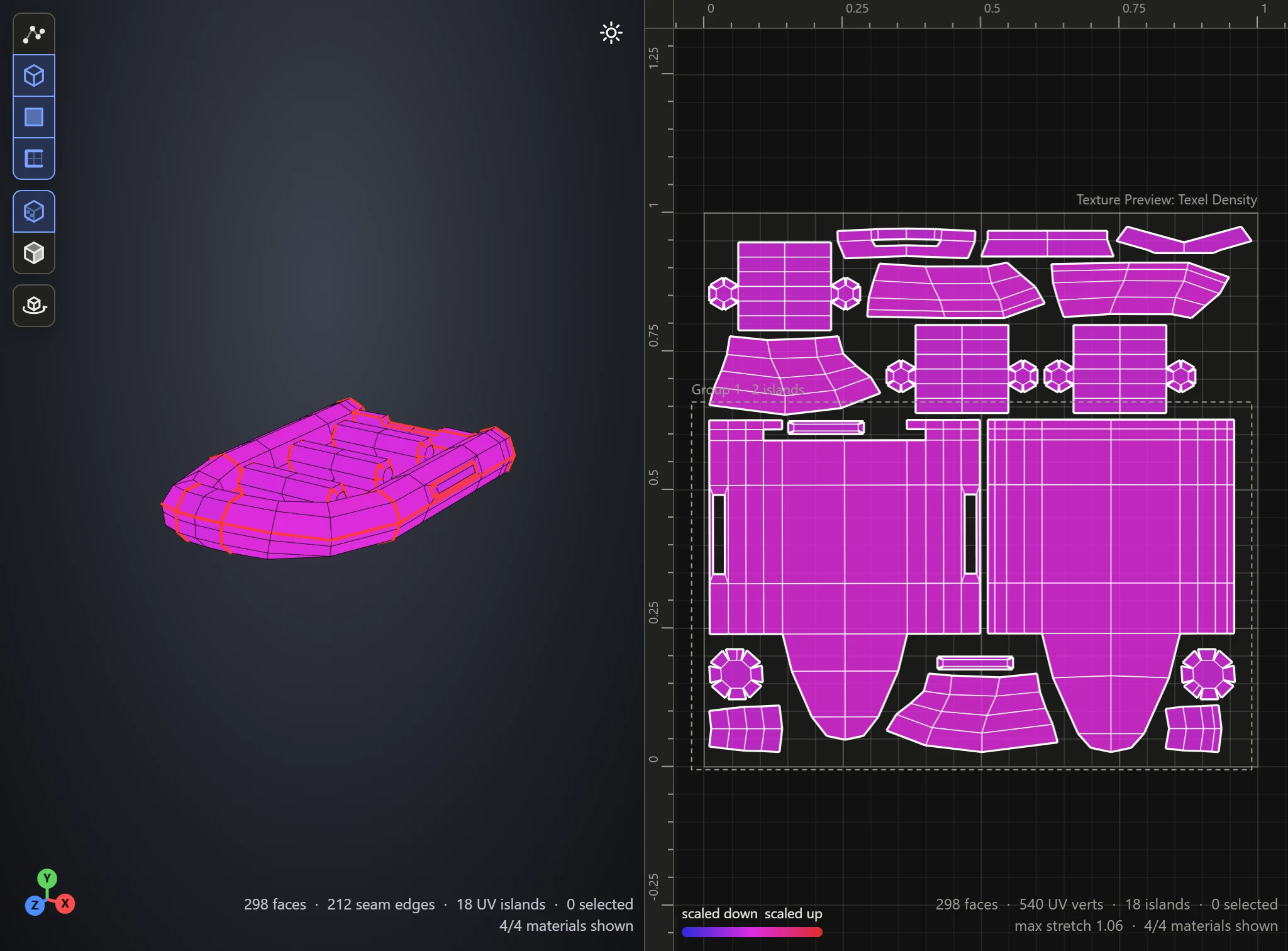
How much of the texture a face gets for its size on the model, against the model as a whole. Blue faces get less, scaled down, so the texture shows blurrier there; red ones get more, scaled up, so it shows sharper. In between, they get their share.
Faces of one island usually share a color. To even out the islands, use Normalize Scale.
Seeing it on the model
Turn on Textures in the 3D View's toolbar to see either preview's colors on the model too, to find where a stretched or squeezed face sits.