Unwrap a cube
A cube is the simplest thing to unwrap: each of its faces is flat, so they all lie flat with no stretch at all. It can come apart as six squares, or stay in one piece as a cross.
Six squares, in one click
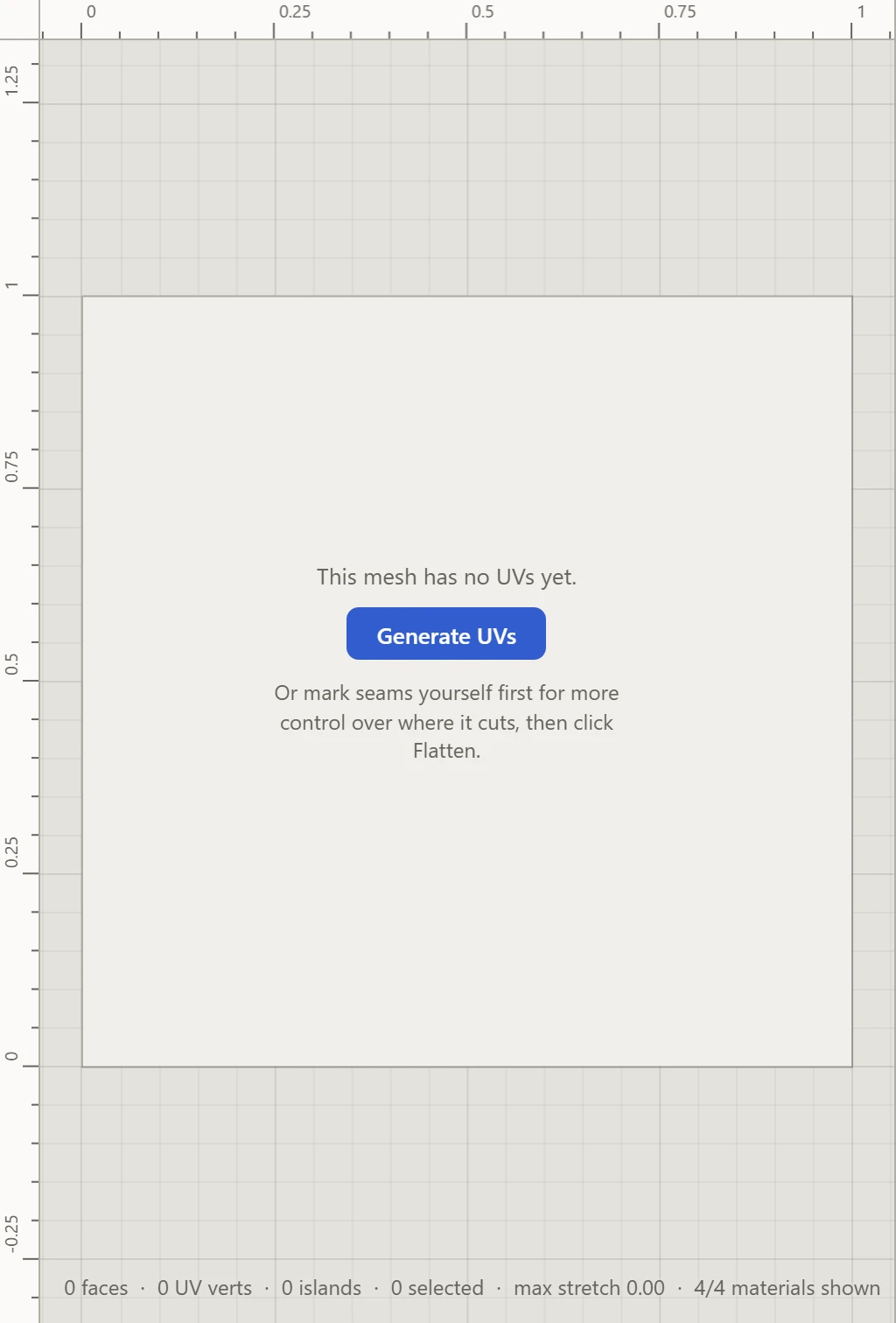
- Open File and, under Examples, with Pre-unwrapped unticked as it is to begin with, click the cube under Primitives. It opens bare, and the UV Layout says it has no UVs yet.
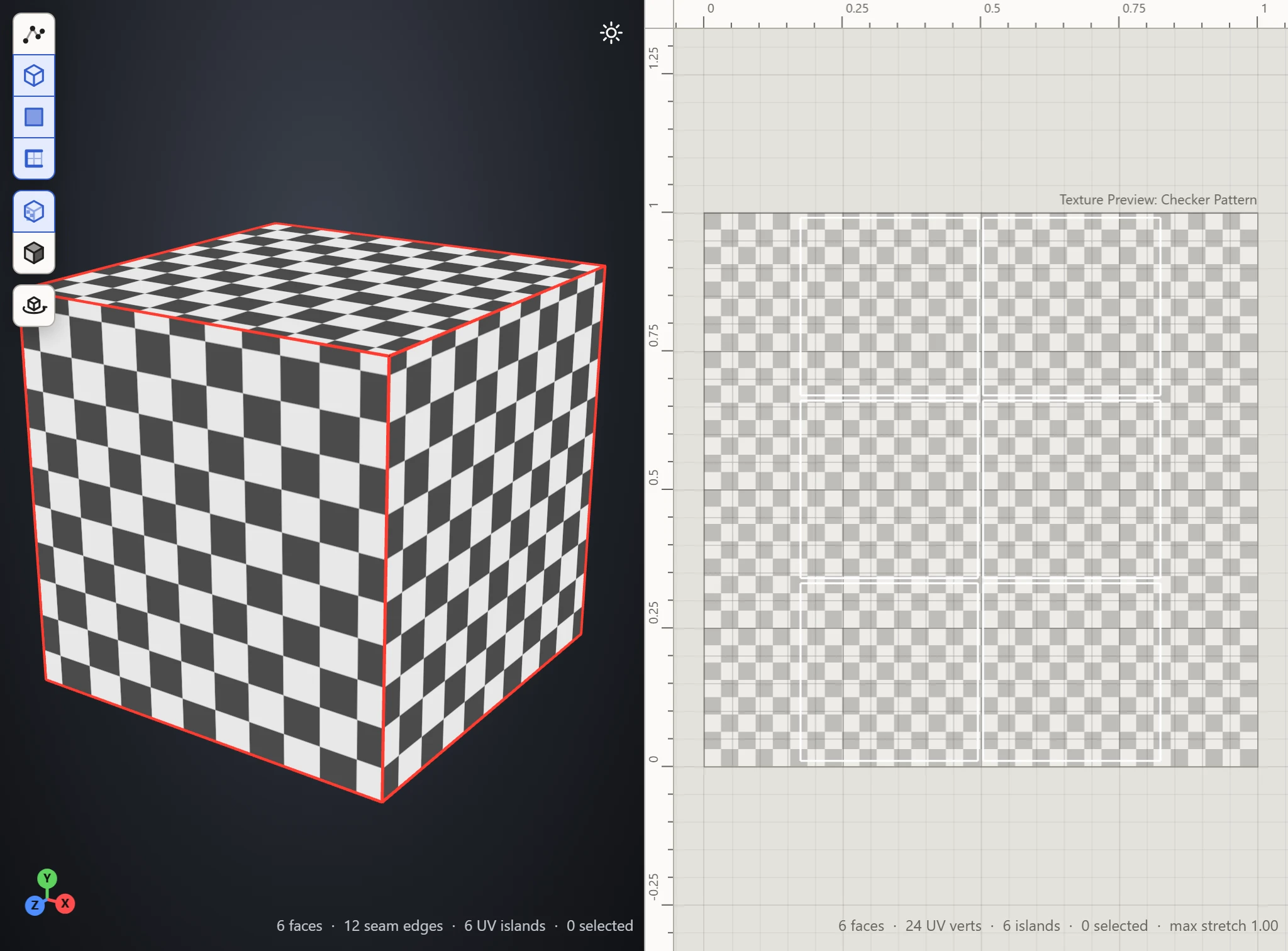
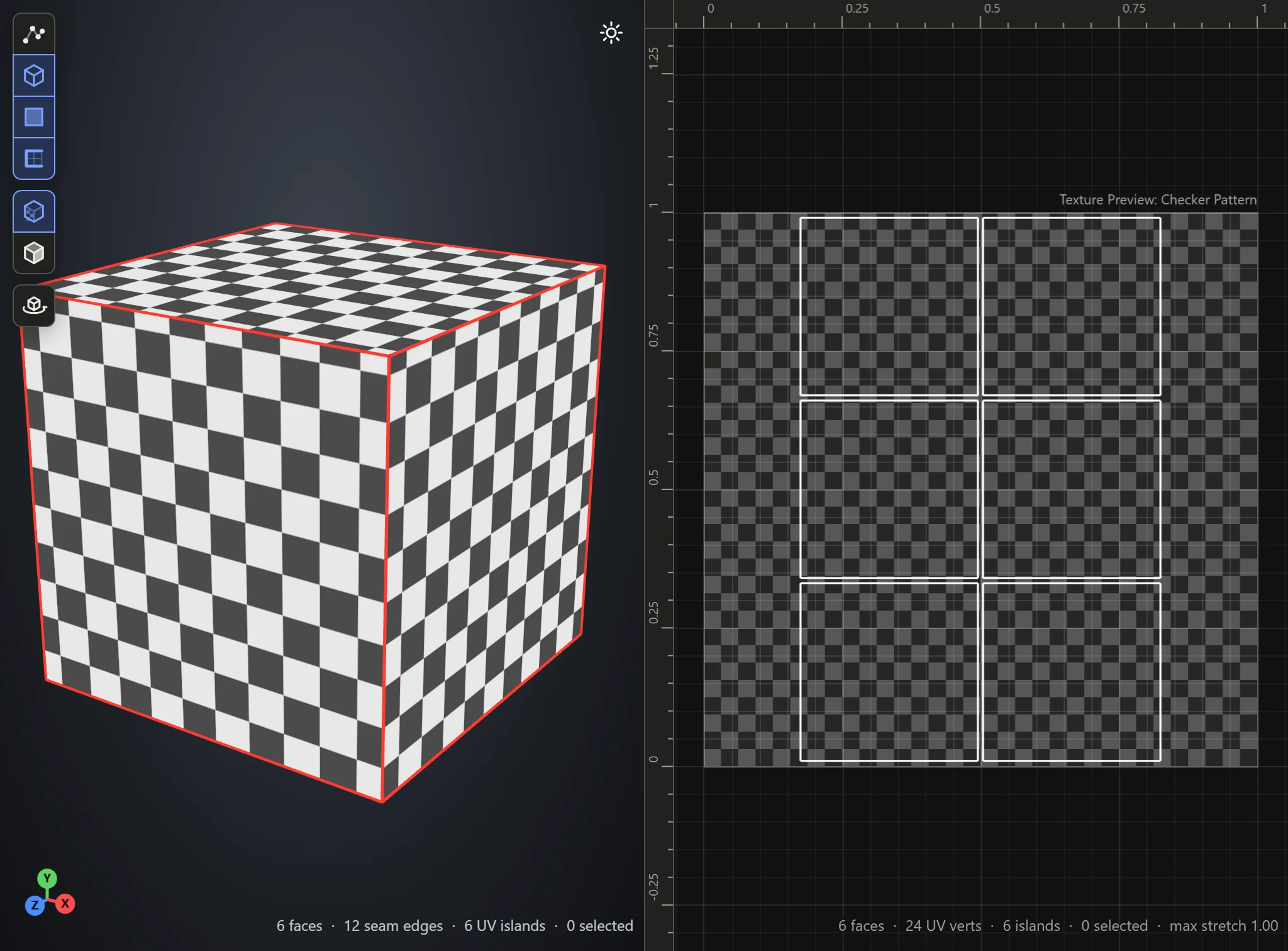
- Click Generate UVs. Every edge of a cube is sharp, so each face comes away as a square of its own, and the six are packed into the square.
One piece, as a cross
To keep the faces joined, cut only the seven edges a cross needs.
- Open the bare cube again, and press 2 for Edges mode.
- In the 3D View, click an edge of the top face, then Shift+click two more: every edge of the top but the one along the side facing you.
- Drag to turn the model, and Shift+click the bottom face's edges the same way: every one but the one along that same side.
- Shift+click one upright edge at the back.
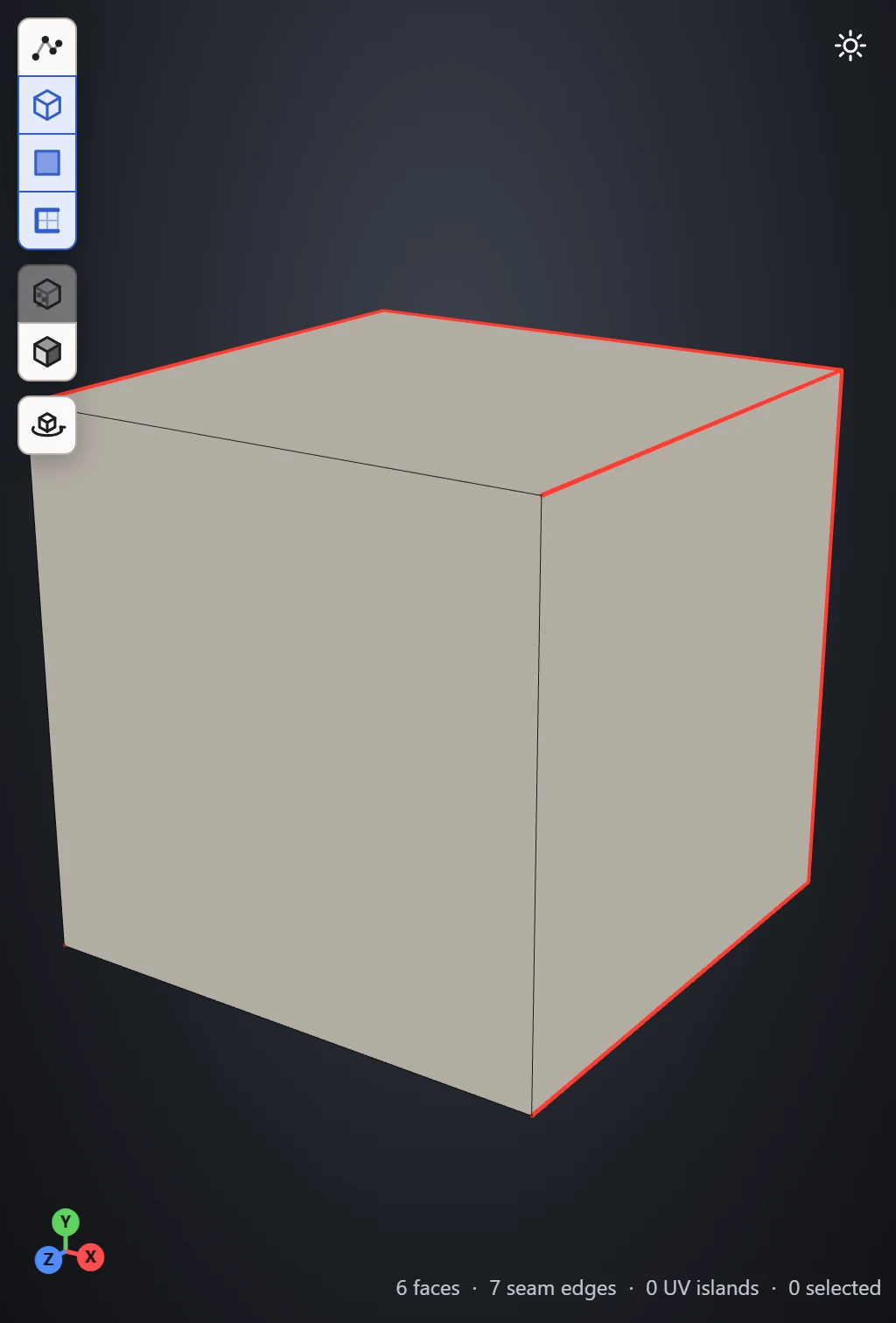
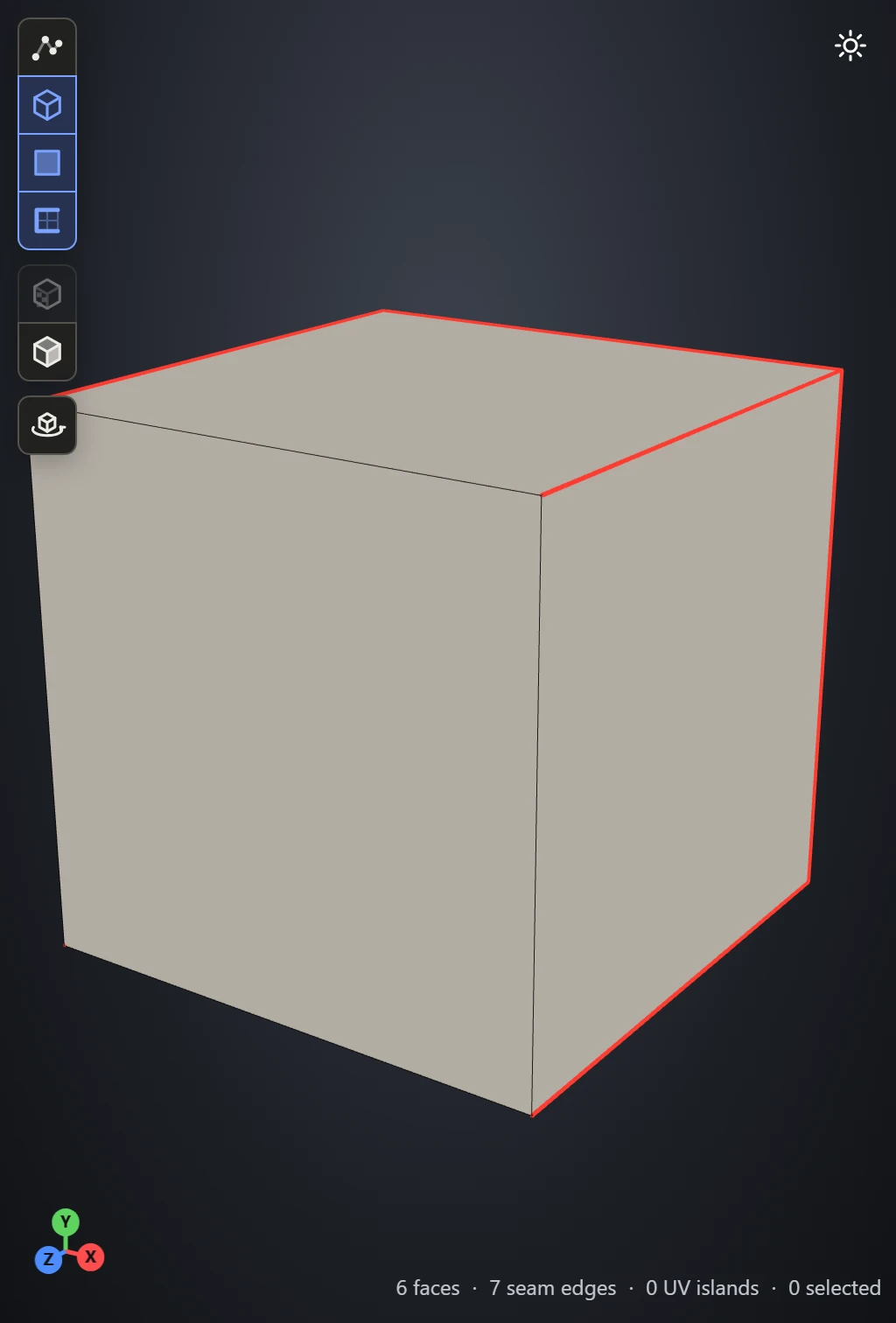
- Click Split: the seven edges turn red, as seams.
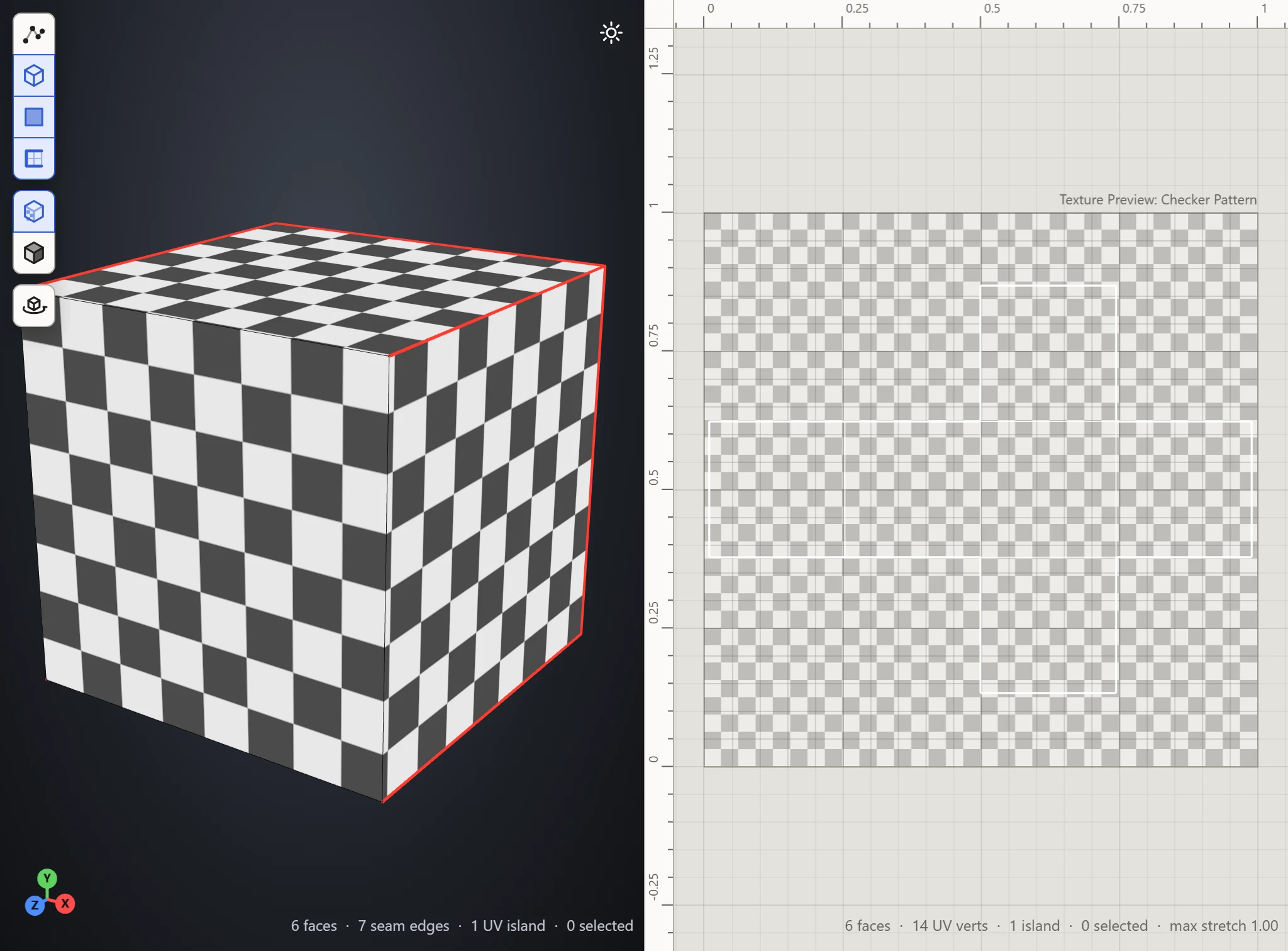
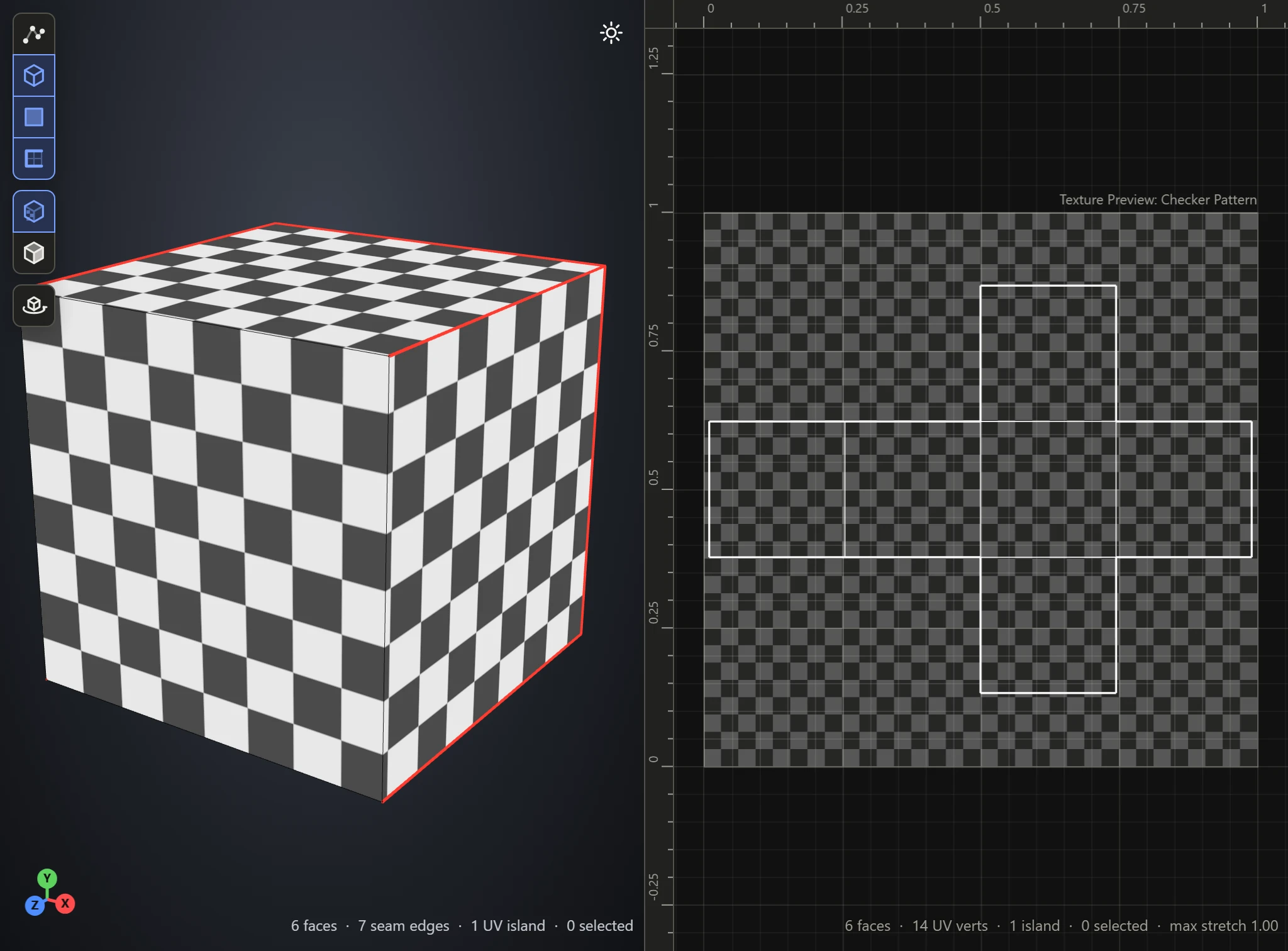
- Click Flatten. The four sides lie in a strip, with the top and bottom either side of the one they're joined to: a cross.
Check it
Pick Checker in the Textures section's Preview. Flatten and Generate UVs turn on Textures in the 3D View, so the pattern shows on the model too: its squares come out square, and the same size on every face. See Color and Checker patterns.