Pack a texture sheet
A texture sheet, or atlas, holds the textures of several parts on one image, so a game or a renderer loads one texture instead of many. Here's how to lay the parts out for one.
Choose what shares it
Open the model with all the parts that will share the sheet. Hide any that won't, in the Objects list or among the Textures section's materials: the tools then leave them alone.
Set how they pack
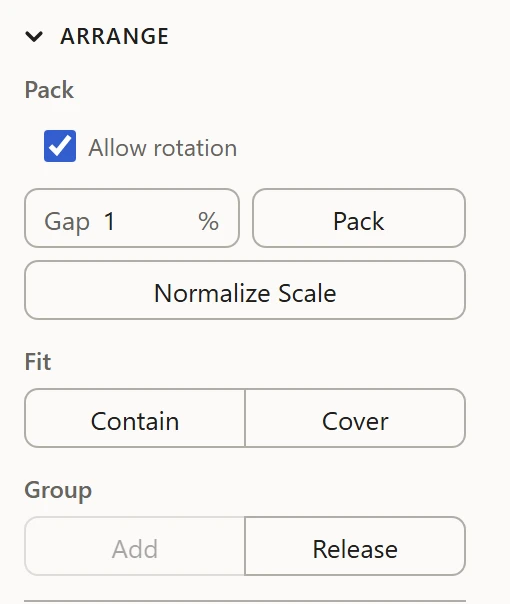
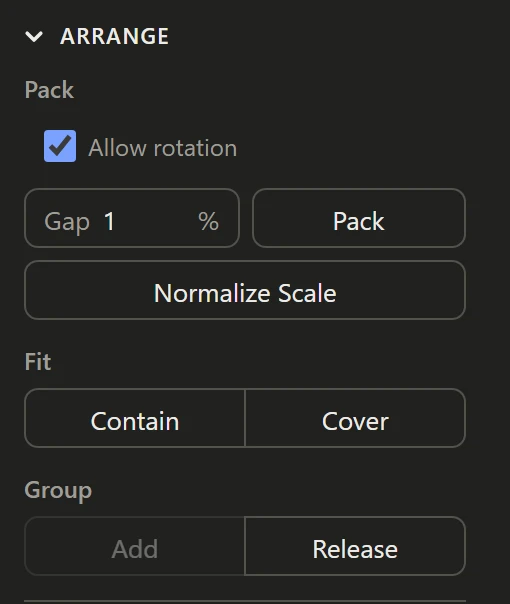
Under Pack, in Arrange:
- Gap: some room between islands keeps the colors of one from bleeding into the next when the texture is shown small. 1%, as it is to begin with, suits most sheets.
- Allow rotation: untick it if the texture has a direction to it, such as wood grain or writing.
Even them out
Click Normalize Scale. Every island gets the same share of the texture for its size, so the sheet's pixels spread evenly over the model, and they're packed with the Gap and rotation set. See Normalize Scale.
To give one part more detail, such as a face or a sign, select its islands and scale them up by hand afterwards.
Keep pieces together
Islands that should stay together on the sheet, such as a part and its trim, can be grouped: select them and press G. A group packs as one piece.
Pack
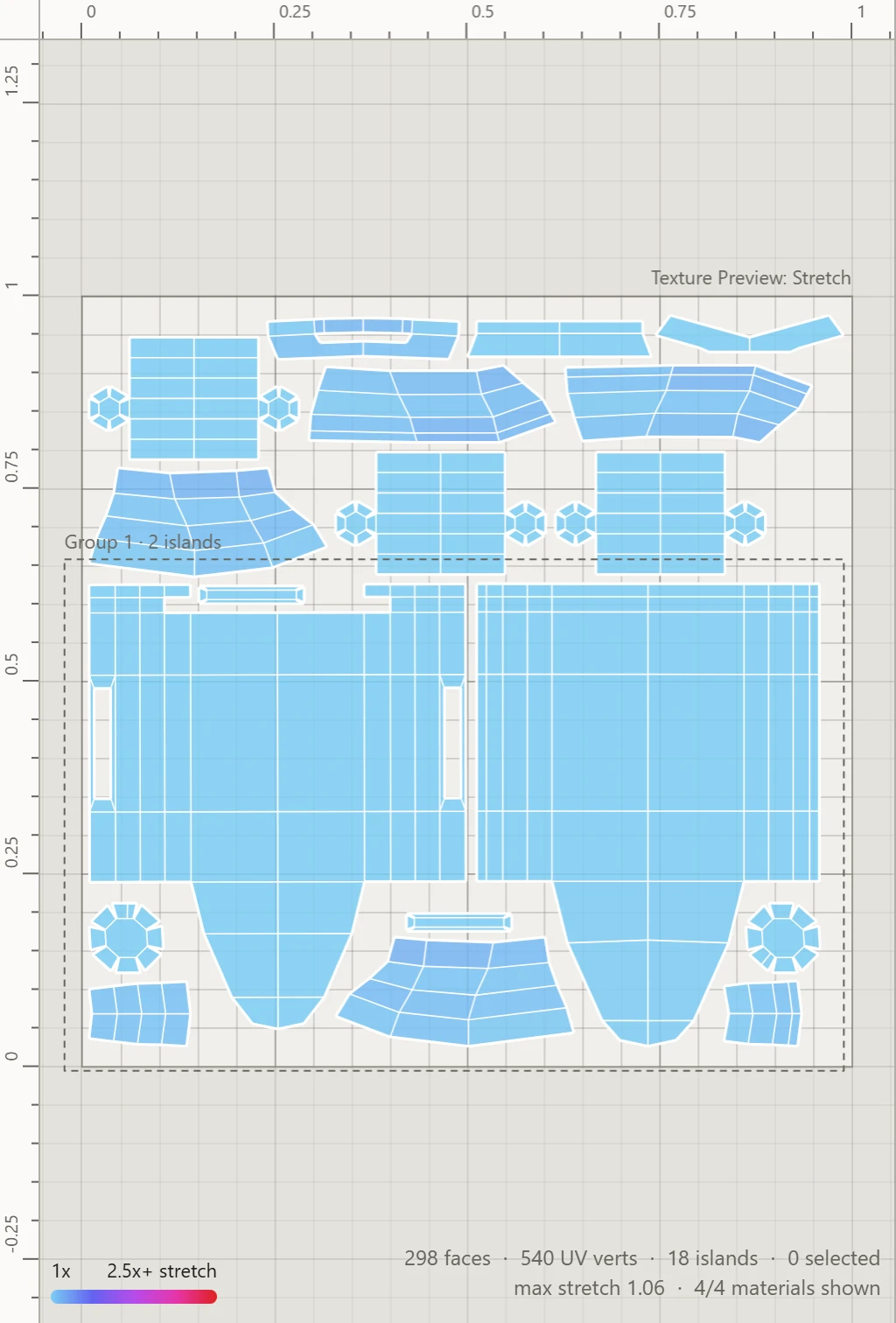
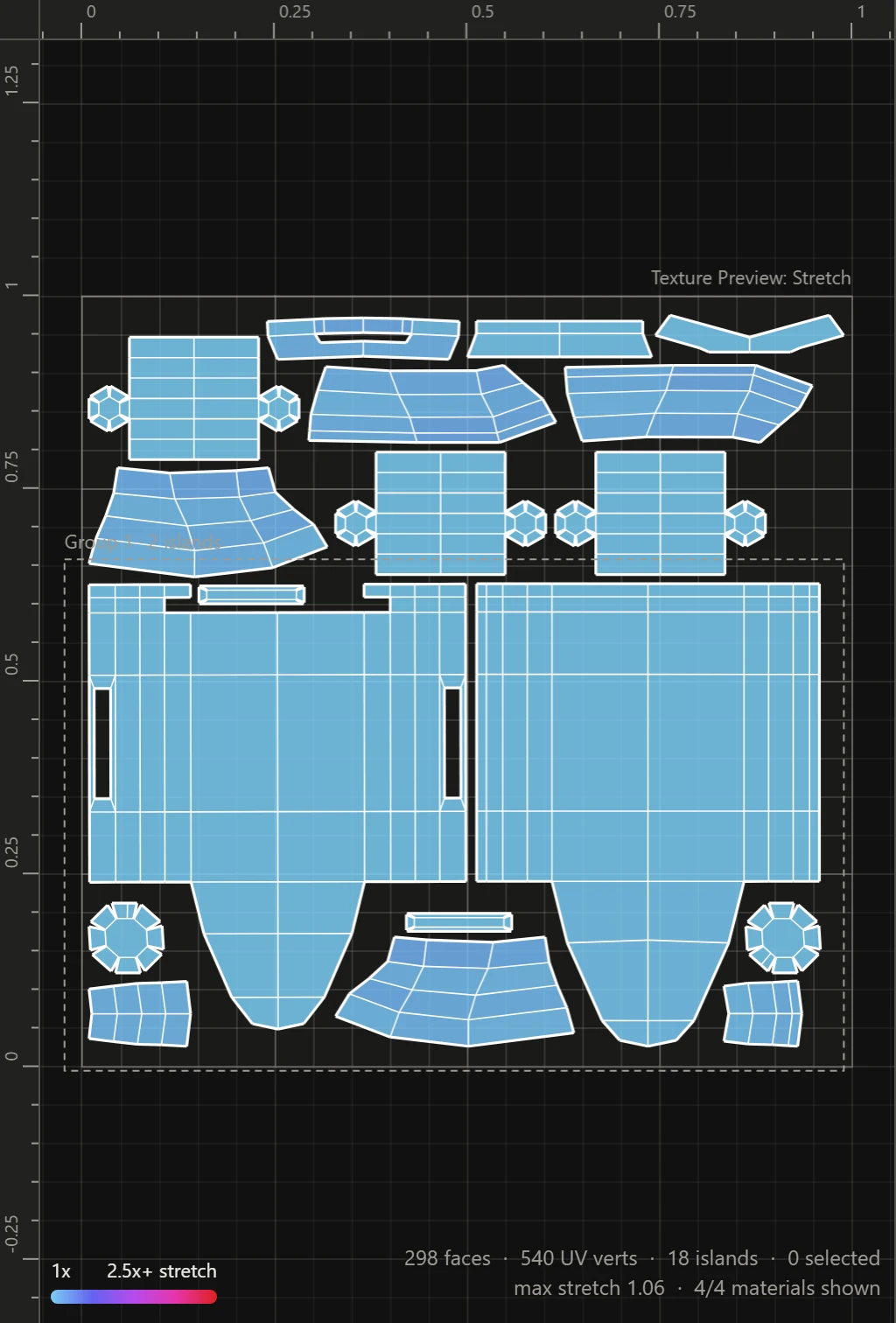
Click Pack to fit them all back into the square, none overlapping, every island keeping its size against the others.
Then paint it
Save the layout as an SVG to paint over: see Paint a texture over the SVG layout.