Materials and textures
The Materials list, in the Textures section, shows the model's materials: each one's color, its texture and how many faces it covers. It lists the materials on the objects shown.
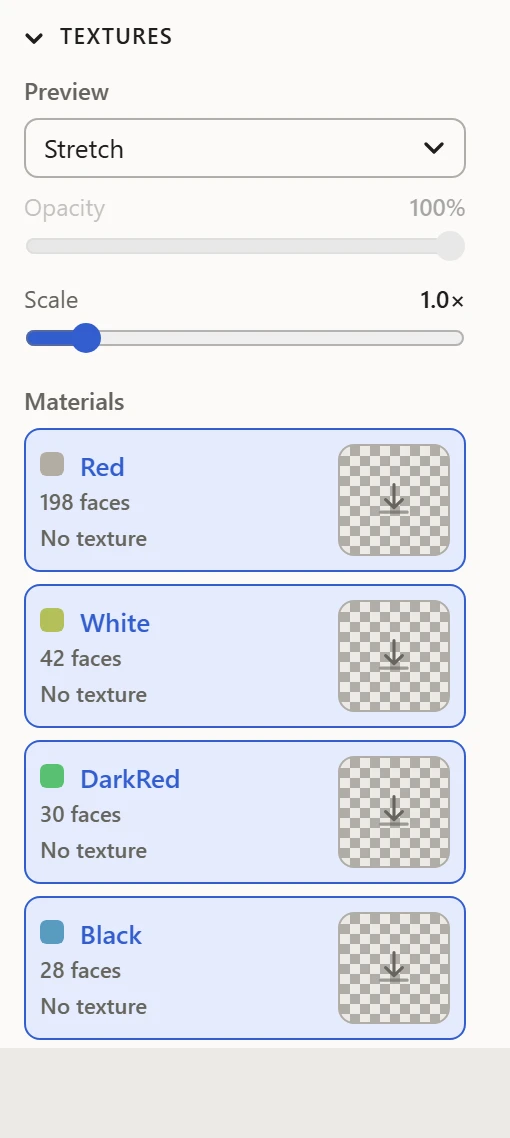
Each material
- Its color: click the swatch beside its name to pick another. The Base preview shows it, and the MTL file saves it.
- Its texture: the box at the right of its row. Drop an image onto it, or click it to pick one. Once a texture's there, click it to take it away again, or drop another onto it. A texture the model names but that isn't loaded yet shows its file name to look for.
- Its opacity map, where it has one, named under its texture. See Opacity maps and color keys.
Showing and hiding
Click a material's row to show or hide its faces, in both views; a shown one is lit. Show all and Hide all do every material at once. A face shows only while both its material and its object do.
Textures on the model
Pick File in the Preview list to see each material's texture: on the model, with Textures on in the 3D View's toolbar, and in the UV Layout, under the islands. The UV Layout shows the active material's texture: the one last clicked in the list, or the one the selection is on.
A texture covers the 0-1 square whatever its shape, stretched to fill it, as every renderer lays one on. One with clear parts of its own, such as a PNG's, shows them clear on the model.
Where textures come from
An MTL file, or a .3ds or .i3d model, names each material's texture. Open the images with the model, or later, and each goes to the material that names it. See Opening files.